Start here
This short film shows the same steps as the cards below. English captions are in the player.
Pick the device that needs help. Download or configure the helper, then send us the ID it shows.
Windows
Run the helper. It does not need a full install. It only accepts incoming help.
If Windows SmartScreen warns, choose More info → Run anyway. That is normal for a newly built helper.
Mac
Control-click the app → Open. Then allow Accessibility and Screen Recording or staff will see a black screen.
On the Mac, open the Apple menu and choose About This Mac. The line under the computer name says which file to use.
About This Mac says Chip, then M1, M2, M3, or M4.
About This Mac says Processor, then Intel.
iPhone / iPad
We cannot remote-control an iPhone or iPad. Apple does not allow it in any remote-desktop app.
Use this if you want to control a computer from your phone, or if the broken machine is a Mac/PC and you only have the phone to read instructions.
Get official RustDesk on the App Store
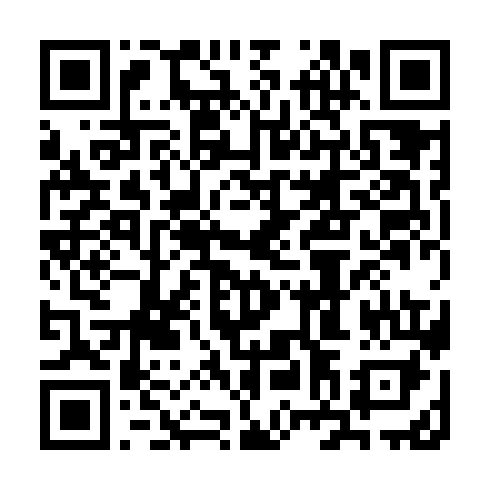
Then Settings → Network and scan this QR.
Android phone
Staff can see this phone. They can tap it only if you turn that on.
This is the official RustDesk app. It is not in the Play Store. The file is about 75 MB. If the phone asks, allow the install from the browser.
Open the app. Go to Settings, then Network, and scan this code. That points the app at our server.
If the camera will not scan, type these instead. ID server: remote.rememberedwithgrace.com. Key: Q3+IaLFxjUpMN4S13qD+2aVrmMt7GZdYnNoHIXNA2e8=.
Then tap Share Screen and Start Service. Allow screen recording when the phone asks. Turn on Input Control if you want staff to tap the phone. Leave it off if you only want them to watch.
Copy the ID from the app and send it below. Keep the app open. When staff connect, tap Accept.
Send the ID to staff
After the helper is running, copy the ID from the app. When staff connect, click Accept on a computer, or tap Accept on a phone.